The Ultimate Setup Guide for Your Dell 14 Plus
The Dell 14 Plus is a compact yet capable 14-inch laptop that blends modern design with high-performance components. This guide walks through what to expect out of the box, how to configure the machine for different real-world use cases, and practical tips for optimizing performance, battery life, and usability. Whether the reader is a creative professional using color-accurate displays, a student wanting long battery life and portability, or a business user needing secure, stable performance, this article covers setup steps, configuration choices, and trade-offs to help get the most from the Dell 14 Plus.
Introduction: Why the Dell 14 Plus?
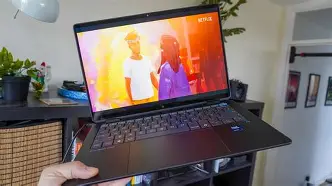
The Dell 14 Plus aims to hit a sweet spot in the premium thin-and-light segment: a sturdy chassis, modern CPUs, optional high-resolution or OLED panels, and a set of ports that still prioritizes utility. Buyers typically care about three things: performance for daily workloads (and bursts of heavier tasks), a screen that matches their workflow, and battery life that endures beyond a work session. The 14 Plus targets those priorities, offering configurations suitable for content creation, software development, remote work, and general productivity.
This guide assumes the reader has a Dell 14 Plus in hand and wants a thoughtful, practical configuration and setup that reflects common real-world needs: color-accurate photo editing, smooth web development, reliable video conferencing, and a balanced setup for travel or desk use.
Unboxing and First Impressions
On unboxing, the Dell 14 Plus typically includes the laptop, a compact charger (often USB-C PD), basic documentation, and a power cable. Important checks at first boot:
- Inspect the chassis and hinge for any transport damage.
- Confirm the correct model number and configuration (CPU, RAM, storage, display).
- Charge to around 50–80% before the first intensive workload for best battery calibration.
- Note any preinstalled software: Dell SupportAssist and trial software are common.
Step-by-Step Initial Setup
A methodical initial setup reduces friction and makes ongoing use smoother. The steps below describe a recommended order for configuring the machine right after unboxing.
1. Create a Recovery Point and Record Serial
Before making big changes, note the service tag/serial number and create a recovery drive (or ensure Windows recovery partition is intact). Recording the service tag helps with future support interactions.
2. Run Firmware and Driver Updates
Firmware and driver updates frequently fix battery reporting, thermal behavior, and display compatibility. Use Dell's Update utility or download updates from Dell support by entering the service tag. Key updates to look for:
- BIOS/UEFI firmware
- Intel/AMD chipset drivers
- Graphics drivers (Intel integrated or discrete GPU)
- Thunderbolt/USB-C firmware if present
Updating BIOS first is often advisable, then proceed with chipset and graphics drivers to avoid dependency issues.
3. Install the Preferred Operating System and Essential Apps
Most buyers will keep Windows preinstalled, but many advanced users choose Linux or set up dual-boot. If installing a fresh OS, ensure the following:
- Create a bootable installer with a reputable tool (for Windows, use Microsoft’s Media Creation Tool; for Linux, use a verified distro image and Rufus or Etcher).
- Check that Wi-Fi, touchpad, keyboard, camera, and audio work after install; some distros require vendor-specific drivers or kernel modules.
- Install essential productivity tools, a browser, and any malware protection software as required by the user’s environment.
4. Configure Power, Display, and Input Settings
Optimizing power and display settings helps extend battery life and improve comfort:
- Set a balanced power profile for daily use; choose high performance only when needed for heavy workloads.
- Calibrate display gamma and color temperature if color-critical work will be done.
- Adjust trackpad sensitivity and enable precision touchpad features for better gesture support.
5. Security and Privacy
Business and privacy-conscious users should enable or configure:
- TPM and BitLocker (or FileVault on macOS-equivalent setups) for disk encryption.
- Windows Hello face recognition or fingerprint (if equipped) for faster authentication.
- Camera privacy options: some models include a physical shutter—confirm this is functioning.
Detailed Product Review and Analysis
The Dell 14 Plus balances portability and performance. Below is a component-by-component analysis with practical notes and trade-offs.
Chassis and Build Quality
The chassis is typically aluminum or a mixed-metal shell, giving the laptop a premium feel. The hinge generally offers good display stability with one-hand opening. For travelers, the frame is durable without being heavy. Buyers who prioritize ultimate portability should measure dimensions and compare weight to ultra-thin options, while those needing robustness will appreciate the firmer construction compared to budget models.
Shop the latest Laptops & Computers picks on Amazon.
View Offers →Display Options and Real-World Use
Display choices often include FHD+ IPS and higher-resolution options or OLED panels. Real-world considerations:
- Content creators will prefer the OLED or high-resolution IPS options for deep contrast and accurate color — calibrate with a hardware colorimeter (X-Rite, Datacolor) for best results.
- Students and office users may opt for FHD to preserve battery life and reduce cost.
- High-brightness panels are useful for outdoor or windowed work; consider matte vs. glossy finishes depending on glare tolerance.
Performance: CPU, RAM, and Storage
The Dell 14 Plus may be configured with mid- to high-end Intel or AMD processors. For general productivity and light creative work, a modern quad- or six-core CPU with 16GB RAM and an NVMe SSD provides a fluid experience. For heavier tasks (video editing, local previews of large codebases, parallel builds), 32GB RAM and a faster CPU or discrete GPU option may be worthwhile.
NVMe SSDs significantly reduce app load times and improve system responsiveness. Users who work with large media libraries should prioritize a larger SSD or plan for external high-speed storage.
Thermals and Noise
Thin-and-light designs constrain thermal headroom. Dell typically tunes fan curves to balance noise and sustained performance. For extended heavy loads, expect thermal throttling at times; using a cooling pad or selecting performance mode can help for short bursts. For quiet work, balanced or whisper modes are preferable.
Keyboard, Trackpad, and Webcam
Key travel and layout are often comfortable for extended typing sessions. The trackpad should support Windows Precision drivers for accurate gestures. Webcam quality is adequate for video calls, but users who rely heavily on video conferencing may prefer an external 1080p webcam for sharper detail and better low-light performance.
Ports and Expandability
Ports often include USB-C with Power Delivery/DisplayPort, USB-A, HDMI, and a microSD or full-size SD slot on some builds. Buye…Comparison Table: Common Dell 14 Plus Configurations
| Configuration | CPU | Display | RAM | Storage | Battery | Best For |
|---|---|---|---|---|---|---|
| Everyday | Intel i5 / AMD Ryzen 5 | 14" FHD+ IPS | 8–16 GB | 256–512 GB NVMe | ~50–60 Wh | Students, office work, web browsing |
| Creator | Intel i7 / Ryzen 7 | 14" OLED or 3K+ IPS | 16–32 GB | 512 GB–1 TB NVMe | ~60 Wh | Photo/video editing, color work |
| Mobile Pro | Intel i7 (vPro option) | 14" FHD+ High Brightness | 16 GB | 512 GB NVMe | ~60 Wh | Business users, remote work, security |
| Performance | Intel i7 + Discrete GPU (if available) | 14" High-Res / OLED | 32 GB | 1 TB NVMe | ~60 Wh | Light gaming, 3D work, heavy multitasking |
Pros & Cons
- Pros
- Compact, premium chassis with solid build quality
- Good display options including high-resolution and OLED choices
- Strong performance in a portable form factor
- Useful port selection for a thin-and-light laptop
- Suitable for a wide range of buyers: students, professionals, creators
- Cons
- Thermal limits inherent to thin designs can cause throttling under sustained load
- Some configurations have soldered RAM limiting upgrade paths
- High-end display options may reduce battery life noticeably
- Webcam and microphone quality are adequate but not exceptional for creators
Buying Guide: What to Prioritize
Choosing the right Dell 14 Plus configuration depends on how the laptop will be used. Below is a breakdown of buyer priorities and recommendations.
1. For Students and Everyday Users
Prioritize battery life, portability, and a reliable keyboard. An FHD+ panel, Intel i5 or Ryzen 5 CPU, 8–16GB RAM, and a 256–512GB SSD are a sensible balance. A lighter warranty or accidental-damage protection may be worth adding if the laptop will travel frequently.
2. For Creatives and Photo/Video Work
Choose a model with a high-resolution IPS or OLED display and at least 16GB of RAM. A wide color gamut (sRGB/Adobe RGB coverage) and higher brightness help when editing; pair the laptop with an external calibrated monitor for critical color work. A larger internal SSD or fast external NVMe storage is recommended to handle large media files.
3. For Business Users
Prioritize security, manageability, and connectivity. vPro options, TPM, and enterprise-grade warranty options are useful. A mid-to-high CPU with 16GB RAM and a 512GB SSD tends to be a good standard configuration. Consider extended warranty and on-site support if uptime is critical.
4. For Developers and Power Users
Development use often benefits from more RAM and faster storage. Aim for 16–32GB RAM and NVMe storage of 512GB or greater. If using containerized workflows or virtual machines, the extra RAM pays off. Evaluate thermal performance if the workload includes long-running builds.
5. Ports and Docking
Consider a USB-C dock if the desk setup includes multiple monitors and peripherals. Check if the laptop supports DisplayPort over USB-C and whether the included charger supports sufficient power delivery for sustained workloads. For frequent travel, a compact charger and a lightweight sleeve or case are practical accessories.
Looking for the best Laptops & Computers deals on Amazon?
Browse Now →Practical Optimization Tips and Maintenance
Battery Care
To maximize battery lifespan:
- Avoid keeping the battery at 100% for long periods; use Dell Power Manager or Windows battery saver features to set a charge ceiling when plugged in for extended periods.
- Keep the battery between 20–80% for routine use when long battery capacity is the goal.
- Perform occasional full discharge cycles (once every few months) to help battery reporting accuracy, but avoid frequent deep discharges.
Thermal Management
Use the following to maintain performance and reduce heat:
- Keep vents clear from dust; use compressed air to clean vents periodically.
- Use balanced or performance power profiles when necessary, and return to quiet modes for normal tasks.
- Consider a cooling pad for intensive sustained workloads.
Storage and Memory Upgrades
Many users can extend laptop life by upgrading the SSD. Confirm that the model's SSD is user-replaceable and follow ESD-safe practices. If RAM is upgradable and the user expects heavier future workloads, purchasing a model with upgradeable slots is a worthwhile future-proofing step.
Docking and External Displays
For multi-monitor setups, a USB-C dock with multiple DisplayPort/HDMI outputs simplifies connectivity. When using high-resolution displays (4K or ultrawide), verify the GPU and USB-C capability to drive the desired resolution and refresh rate. Use DisplayPort MST or multiple discrete outputs depending on the dock and GPU capabilities.
Real-World Use Cases
Below are example scenarios and recommended configurations:
Remote Consultant / Frequent Traveler
Needs: lightweight build, good battery life, fast boot, and reliable wireless. Recommended: FHD panel, Intel i5/Ryzen 5, 16GB RAM, 512GB SSD, and compact USB-C charger. Add a privacy screen or physical webcam cover and an external USB-C hub for meeting setups.
Photo Editor / Designer
Needs: accurate colors, high brightness, and fast storage. Recommended: OLED or high-res IPS with wide color coverage, Intel i7/Ryzen 7, 32GB RAM, 1TB NVMe, and external calibrated monitor for final checks.
Software Developer
Needs: multitasking, local containers, long battery life during commute. Recommended: 16–32GB RAM, 512GB–1TB NVMe, mid-to-high CPU, and a quality external monitor at the desk to increase productivity. Consider a mechanical external keyboard for extended coding sessions.
Conclusion
The Dell 14 Plus is a versatile laptop that serves a wide spectrum of buyers: from students and business professionals to creatives and developers. The most important setup choices revolve around the display, RAM, and storage, because those options have the biggest impact on day-to-day experience. Proper initial setup—firmware updates, power and privacy settings, and chosen accessories—will maximize the value and longevity of the machine.
By following the steps and recommendations in this guide, owners can tailor the Dell 14 Plus to their specific workflows, ensuring robust performance in the office, confidence on the road, and reliable results for creative work. Thoughtful configuration and routine maintenance make the difference between an OK laptop and one that becomes a dependable daily workhorse.